
Agent guide
Works todayHow to enable Grok Bot to make phone calls
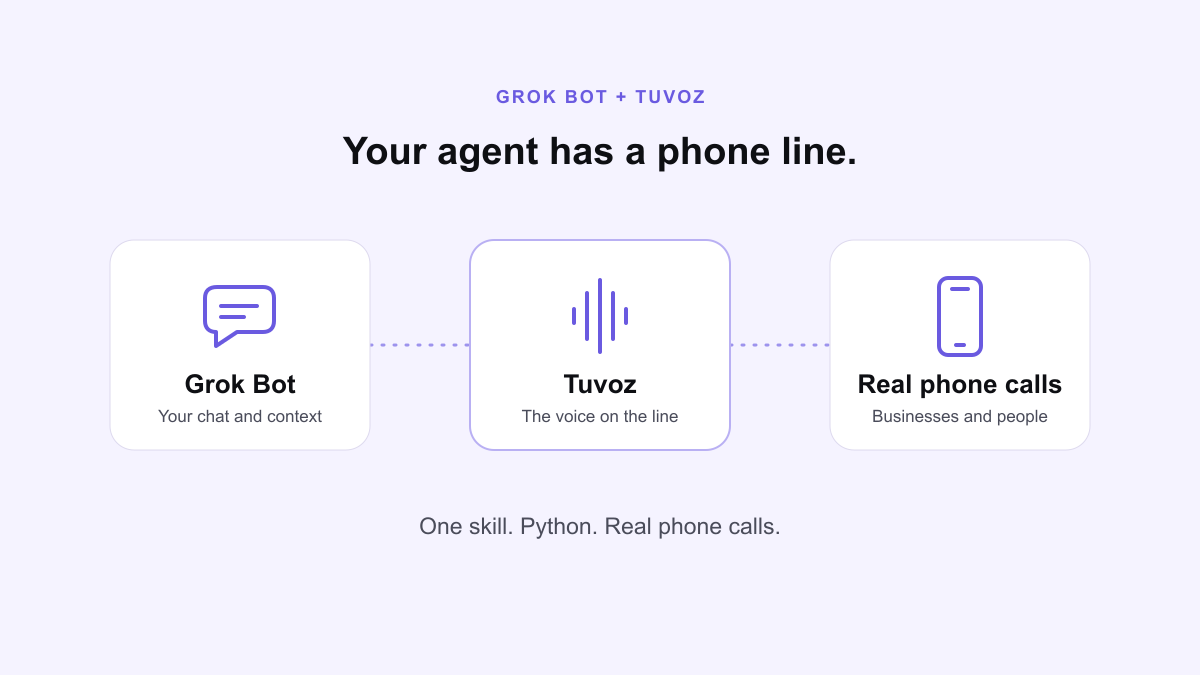
Give Grok Bot a real phone line with Tuvoz. Install the phone-call skill and Python script on its computer, sign in, and ask for a call.
Install
Paste this into Grok Bot:
Set up Tuvoz: https://tuvoz.io/agentsGrok Bot uses the standard Tuvoz skill and Python script on its computer. Grok Bot has a persistent computer with command-line tools, as xAI explains.
Step by step
- Open a task in Grok Bot with access to its execution computer, then paste the setup line above.
- Approve the install commands it requests. It follows its own section on the setup page, downloads the standard skill, checks its SHA-256 and installs
SKILL.mdandscripts/tuvoz.pyinto~/.local/share/tuvoz/skills/phone-call/on that computer. - Open the sign-in link it shows you. Sign in with Google and click Approve. If you’re new to Tuvoz, finish the phone and name checks too. You never paste a password or API key into the chat.
- Ask for a test call to your own phone. Then ask for a real call using the examples below.
The agent reads SKILL.md explicitly and runs commands as python3 <absolute-skill-path>/scripts/tuvoz.py .... The folder is Tuvoz’s storage path; it doesn’t depend on the client discovering a new skill automatically. Keep the skill folder and ~/.config/tuvoz on the same computer for later tasks, or install and authorize again after a reset.
During a call
Grok Bot shows you the brief, number and opening line, and waits for your yes before dialing. It follows the skill’s watch, answer and escalate loop through the Python CLI. Keep that task running so it can respond from your chat. If it can’t answer or stops checking in, Tuvoz phones you. You can also follow the call in your Tuvoz dashboard (how the backchannel works).
Your first test call
Ask Grok Bot for a test call, or have it run this. Tuvoz calls your own phone; the first time, it asks you to press 1 to confirm you agree to AI calls on that number, unless your Tuvoz assistant called you to verify it.
tuvoz test-callExample prompts
- Set up Tuvoz: https://tuvoz.io/agents
- Make a Tuvoz test call to my phone.
- Call Luigi’s Trattoria at (415) 555-0142 and ask for a table for 4 tonight at 7.
- Call the store at (312) 555-0177 and ask if my order is ready.
Limits and caveats
- Use the client’s computer environment with Python 3.9 or newer, bash, curl, unzip and shasum, plus network access to api.tuvoz.io.
- The skill and its credentials stay on that computer. If the environment resets, install and sign in again.
- Keep the task watching while the call is live. If it stops checking in, Tuvoz phones you with questions.
FAQ
- How does Grok Bot connect to Tuvoz?
- It reads the phone-call skill and runs the bundled Python CLI on its execution computer. You authorize it from the sign-in link it shows you.
- Do I need to paste an API key?
- No. Open the device sign-in link, sign in with Google and click Approve. The CLI stores the credential on the execution computer.
- What happens if the task stops watching the call?
- The call continues. Tuvoz phones your verified number when it needs an answer and your agent is not checking in.
- Does this use the usual Tuvoz pricing?
- Yes. Calls use your existing Tuvoz balance and phone-call pricing. Your AI client subscription is separate.